Take card payments with Clover device 5
Summary of what you and customer do 5
Bring Clover to Welcome screen 12
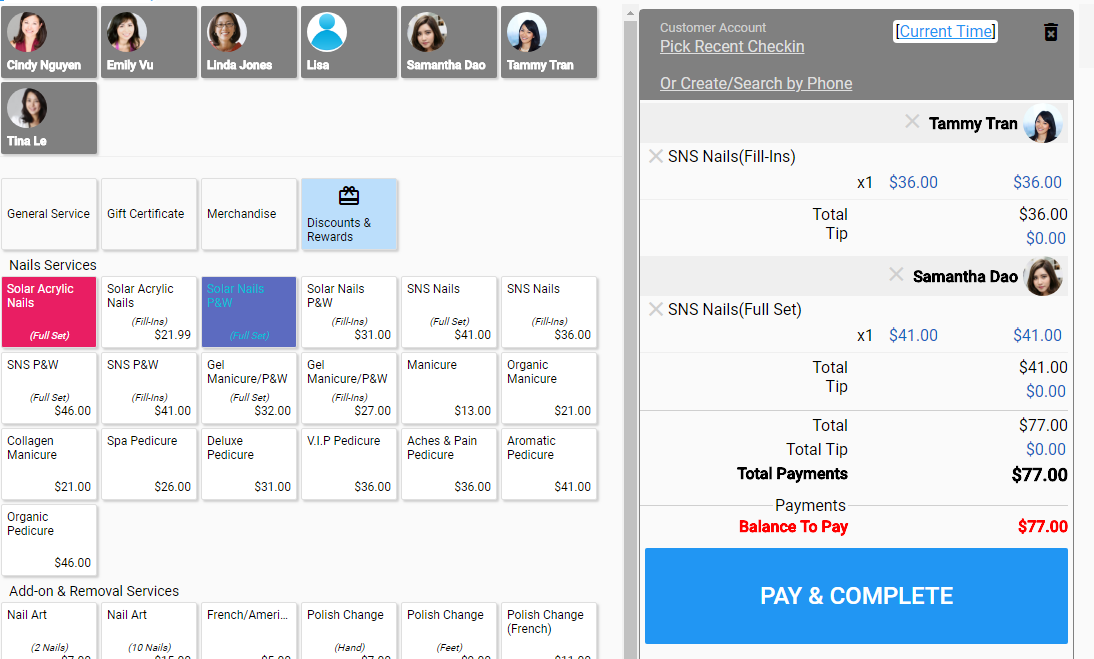
Step 1: Create sale ticket:
Step 2: Optionally, add customer account the sale ticket. You only to do this if you want to track your customer spending for loyalty reward purpose or for improve your customer’s satisfaction for example.
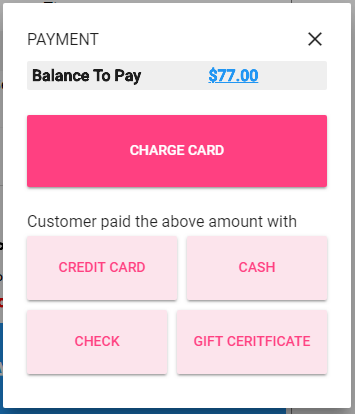
Step 3: Tap on PAY & COMPLETE to start taking payments and complete the sale ticket
Step 4: On PAYMENT dialog, by default, Rewanow try to take the full (or remained) “balance to pay” on the sale ticket, but you can tap on the number to take a smaller amount (when customer wants to split the payment into multiple amounts)
Step 5: Choose how you want to take the payment from customer:
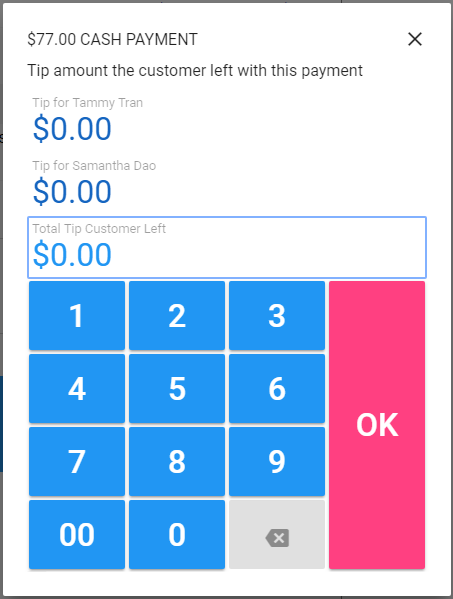
Step 6: If you choose options 2 to 5, Rewanow will then ask you to enter the amount of tip the customer left with that payment. If the sale ticket has more than one technician, you can enter the total tip and let Rewanow to split the tip for you, or you can split the tip yourself and enter tip for each technician separately. If customer left no tip, leave the number with 0s.
Tap OK when done to complete the payment
Step | You | Customer |
1 | Make sure Clover device is at its Welcome screen You only need to do this once; not every time you take a payment; until you restart your Clover device or exit Network Pay Display app for some reason (for Closeout batch, or for issuing refund to customers for example) | |
2 | Create sale ticket Start taking payment process (by tapping on PAY & COMPLETE button in checkout screen and then tapping on CHARGE CARD button in PAYMENT dialog) | |
3 | Tell Rewanow connect to Clover device You only need to do this once; not every time you take a payment; until you restart your Rewanow computer, or restart Clover device or exit Network Pay Display app for some reason (for Closeout batch, or for issuing refund to customers for example) | |
4 | Pair Rewanow with Clover device You only need to do this once; not every time you take a payment; Clover only requires you to do this once every many days (typically 30 days) | |
5 | Customer chooses how much tip they want to give | |
6 | Customer swipe/dip their card (or tap their phone with Apple/Android/Samsung pay) | |
7 | Customer chooses type of card they used | |
8 | Customer sign their name with fingers This step may or may not require, depending your settings | |
9 | Customer chooses if they want to receive a receipt | |
10 | Confirm the tip customer left and complete the payment This step may or may not require, depending your settings |
Step 1: Make sure Clover device is at its Welcome screen (see how to do it below)
Step 2: Create sale ticket
Tap on PAY & COMPLETE to start taking payments and complete the sale ticket
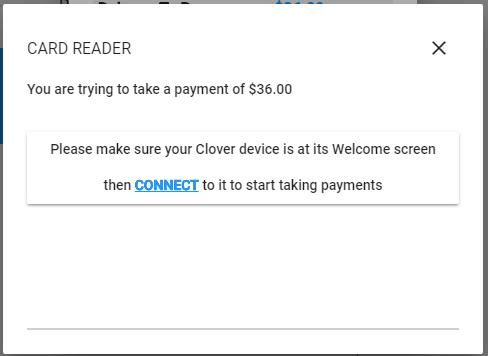
Tap on CHARGE CARD button on PAYMENT dialog, the CARD READER dialog will show
Step 3: If CARD READER shows CONNECT button, tap on it to let Rewanow connect to the Clover device. You only needs to do this once; Rewanow won’t ask you to connect again when taking payment for future sale tickets
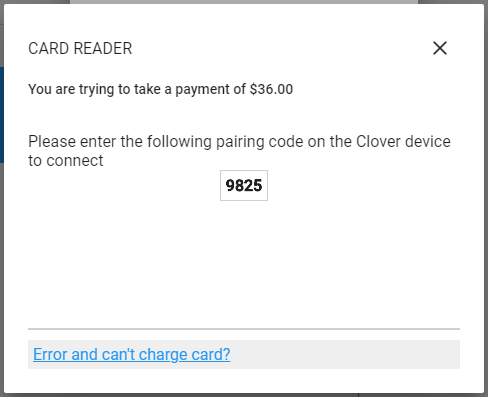
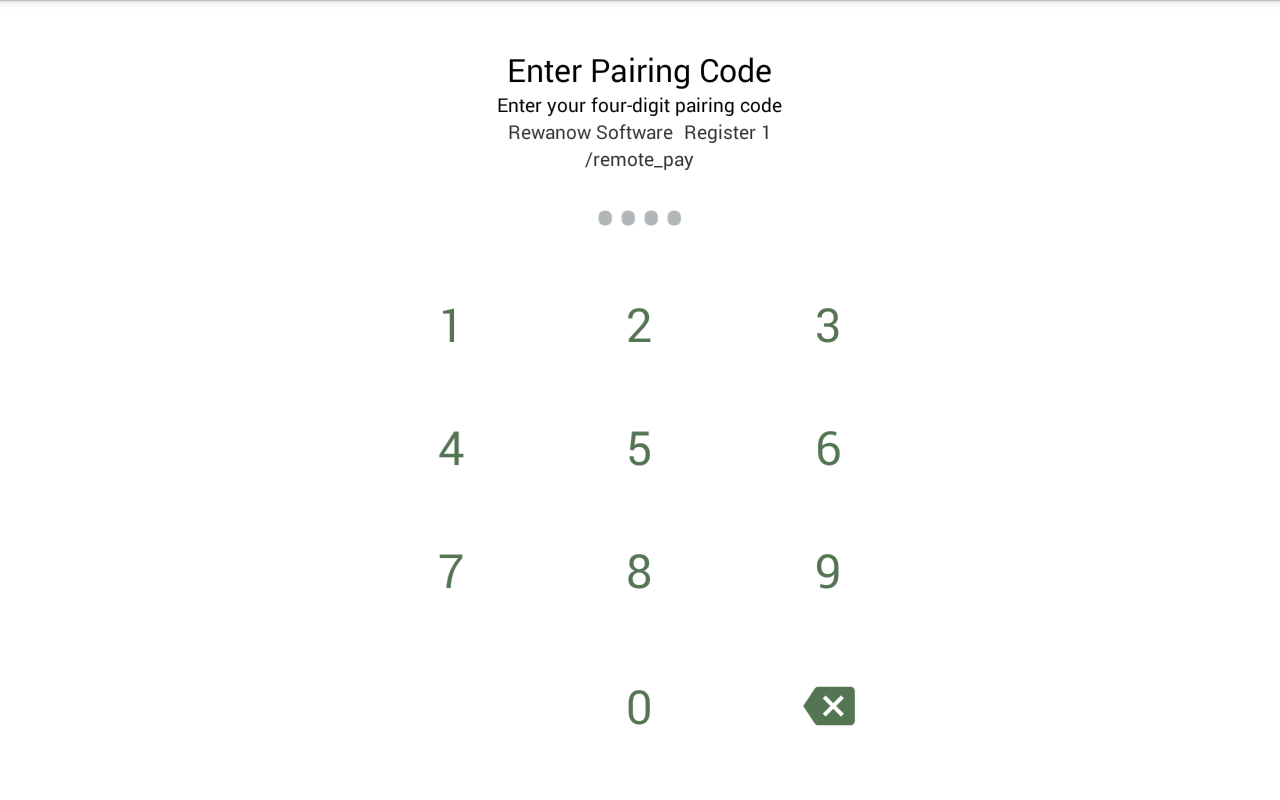
Step 4: If CARD READER show a pin number, enter that pin on Clover device:
Clover device would be at the Pairing screen for you to enter the pin number. Clover device won’t ask you to enter pin, when taking payments for future sale tickets, for the next many days (typically 30 days).
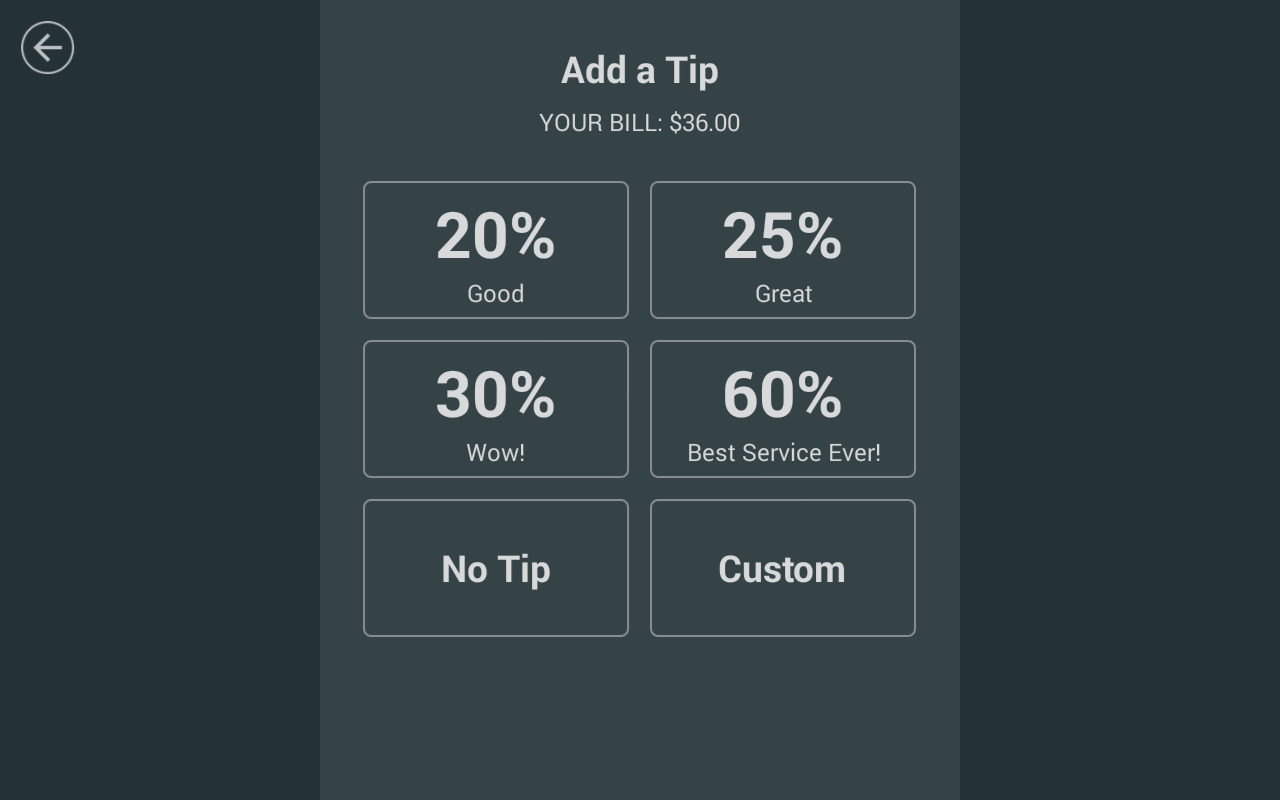
Step 5: Clover device will be on Tip screen and wait for customer to add their tip:
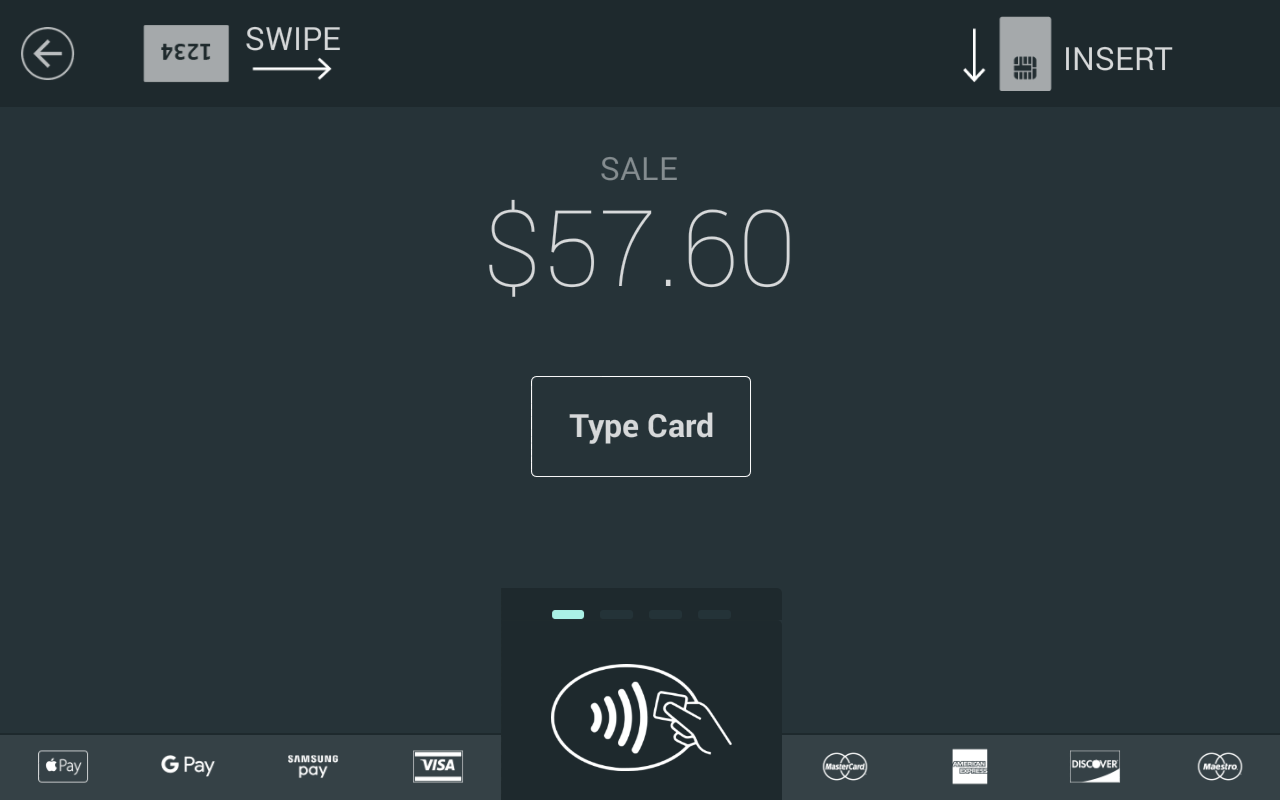
Step 6: Clover device will waits for customer to provides payment (swiping or dipping either credit or debit cards, or using Apply/Android/Samsung pay from their phone)
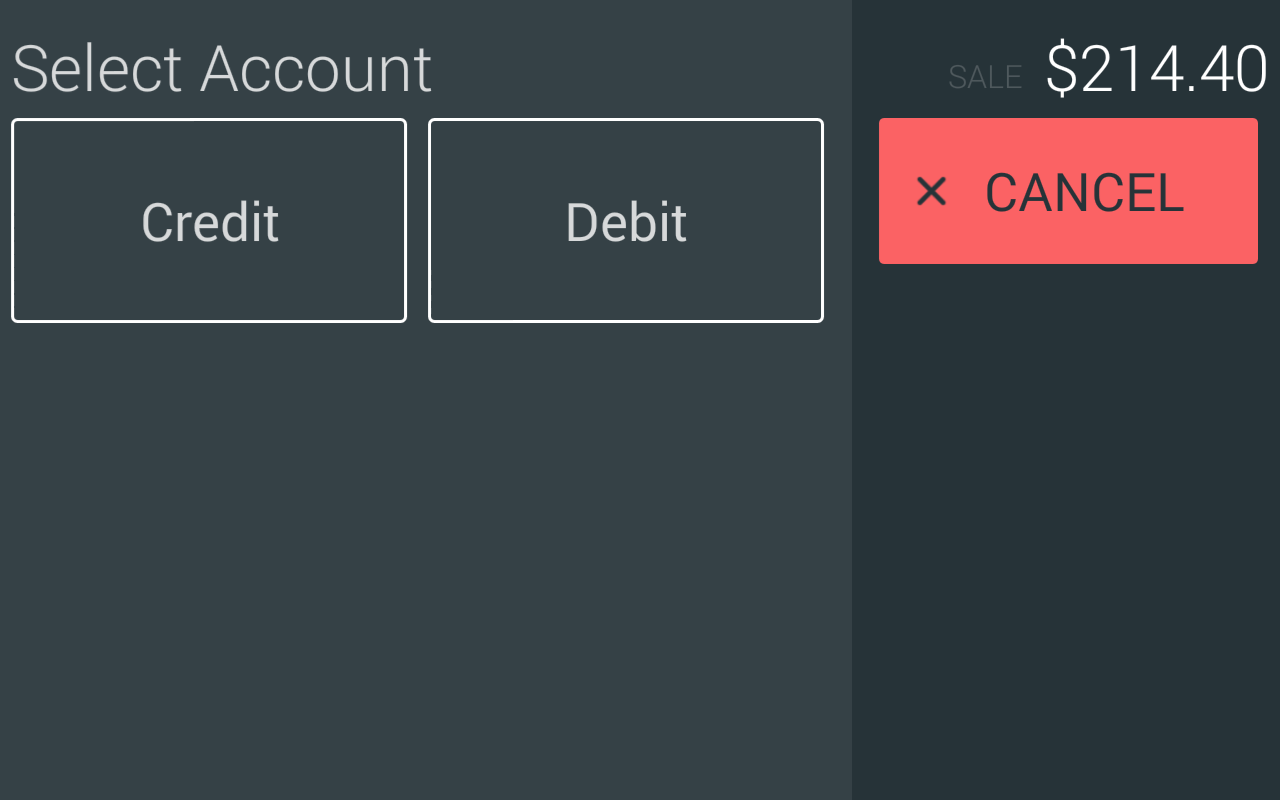
Step 7: Clover device will then waits for customer to select the type of card they used; if debt was selected, it will ask for card’s pin.
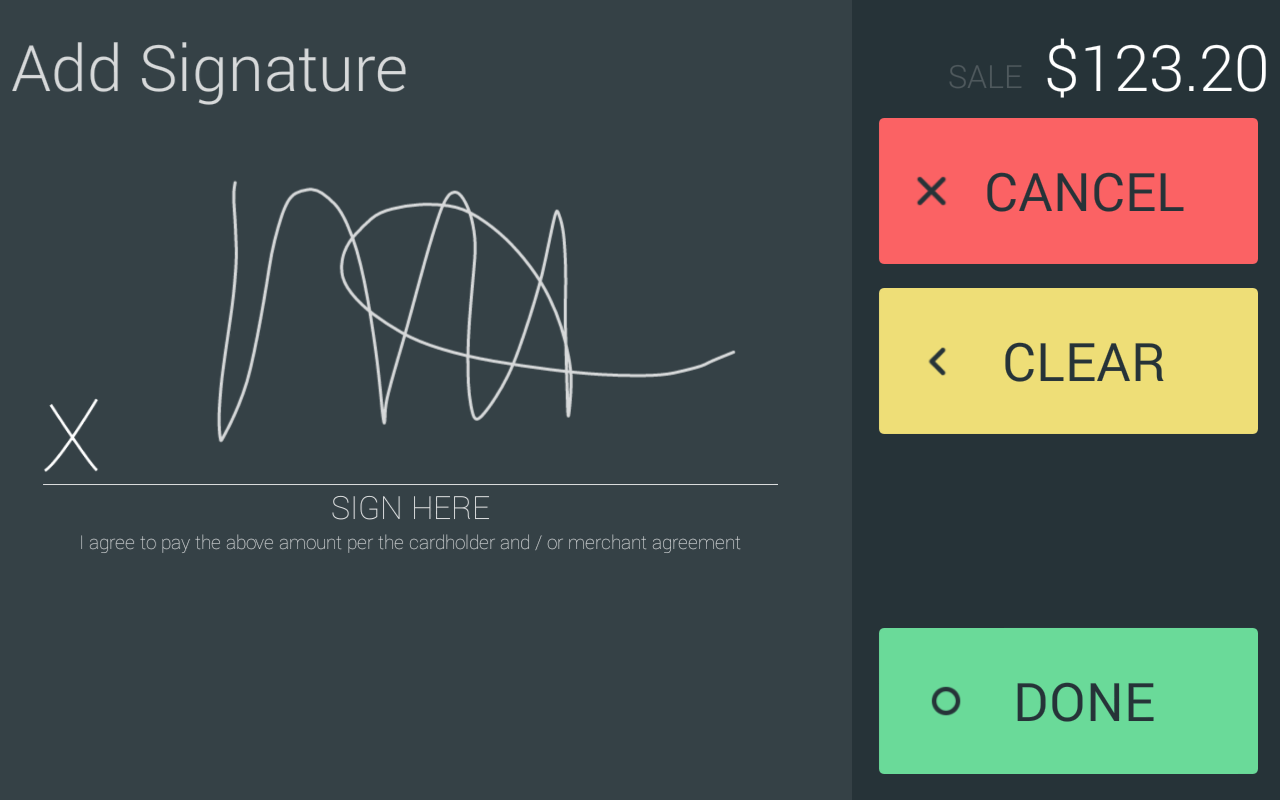
Step 8: Clover device will then waits for customer to sign on the screen using their fingers
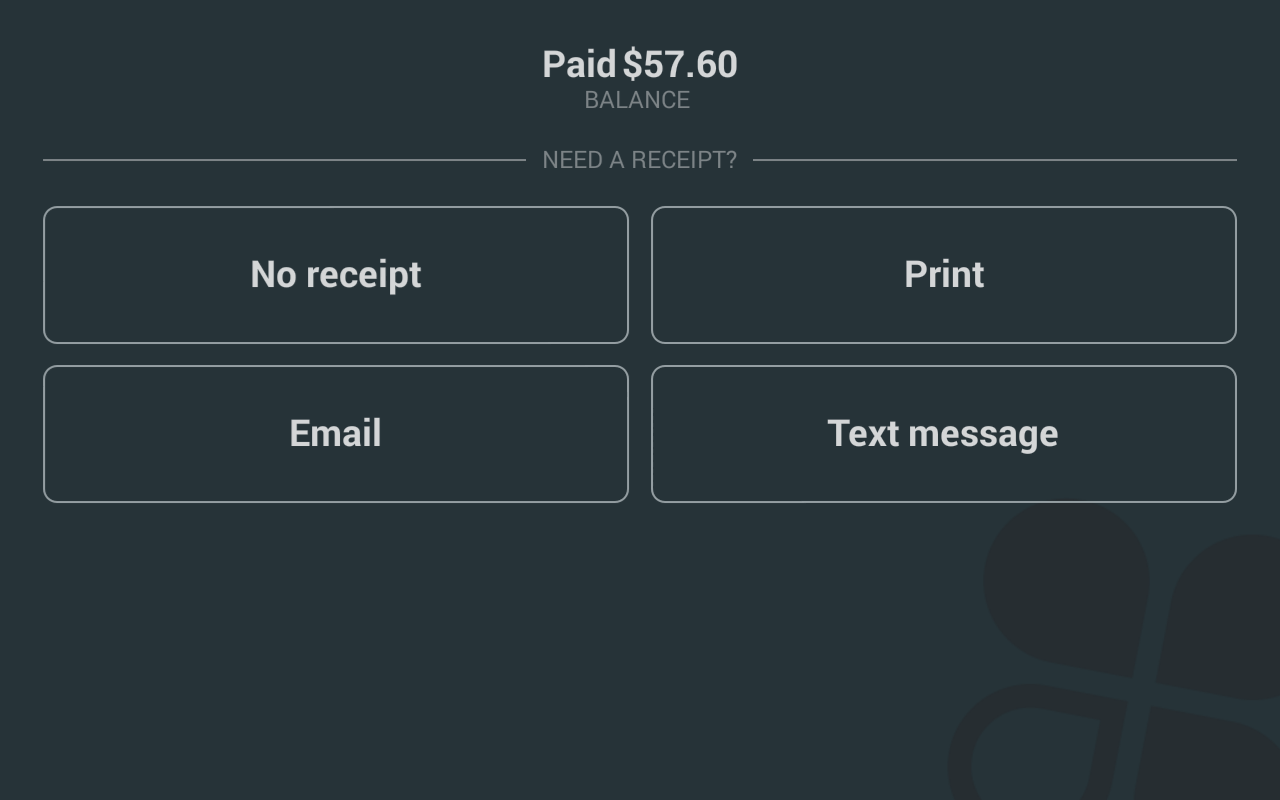
Step 9: Clover device will then ask customer if they want to have a receipt for the transaction:
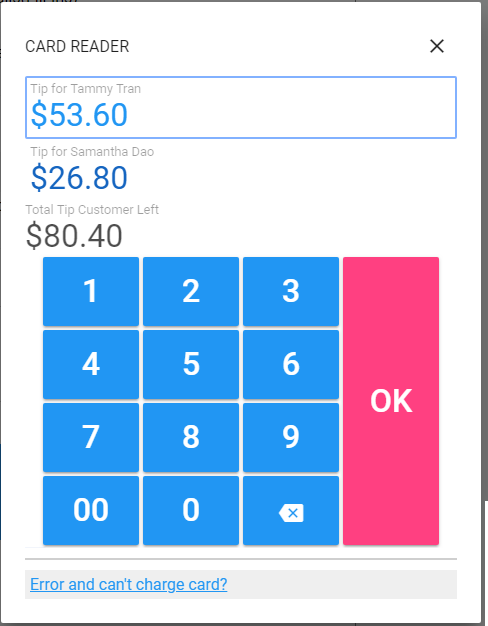
Step 10: Depending on your settings, Rewanow may now show the amount of tip the customer left. If there was more than one technician on the sale ticket, the tip would be automatically splitted between them, but you can change it if you want. Then tap OK to confirm the tip and complete the sale ticket:
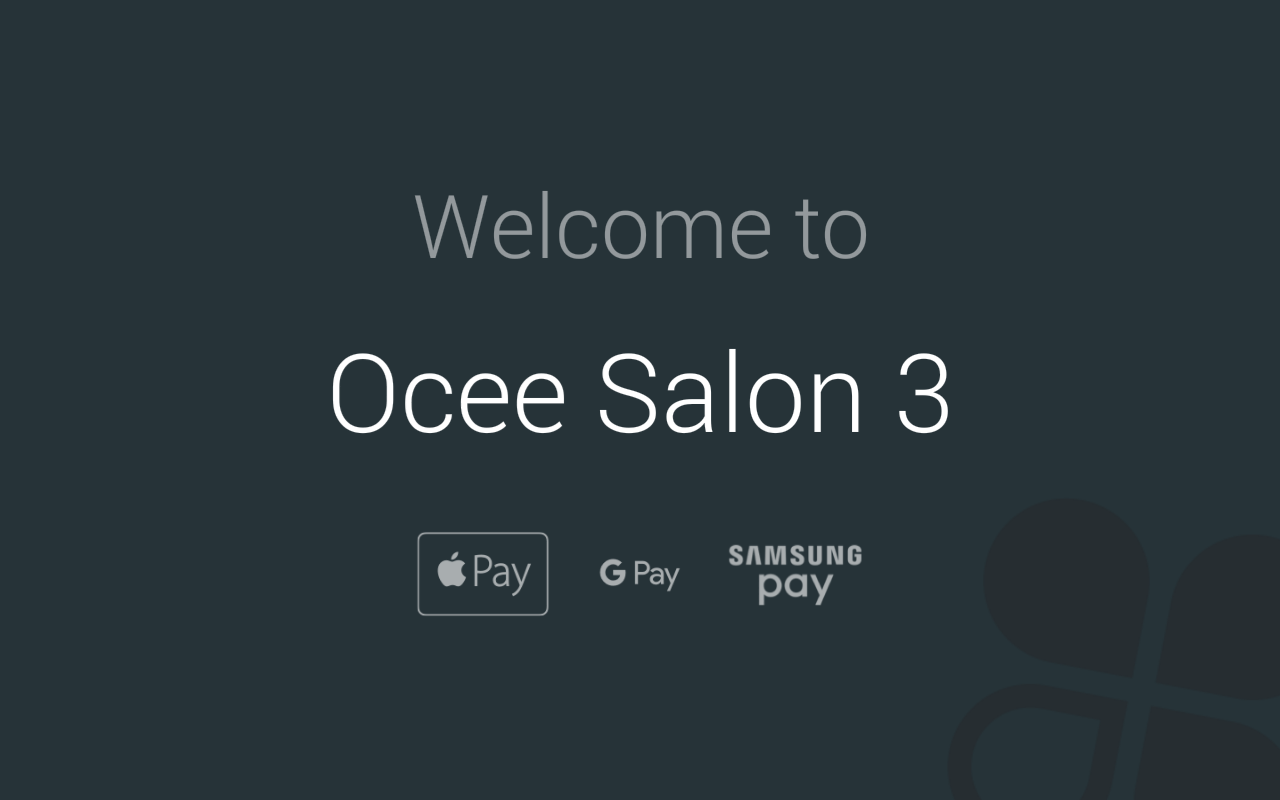
The Welcome screen on Clover device looks like this:
If Network Pay Display app is running but not at its Welcome screen, just cancel everything and will come back to its Welcome screen
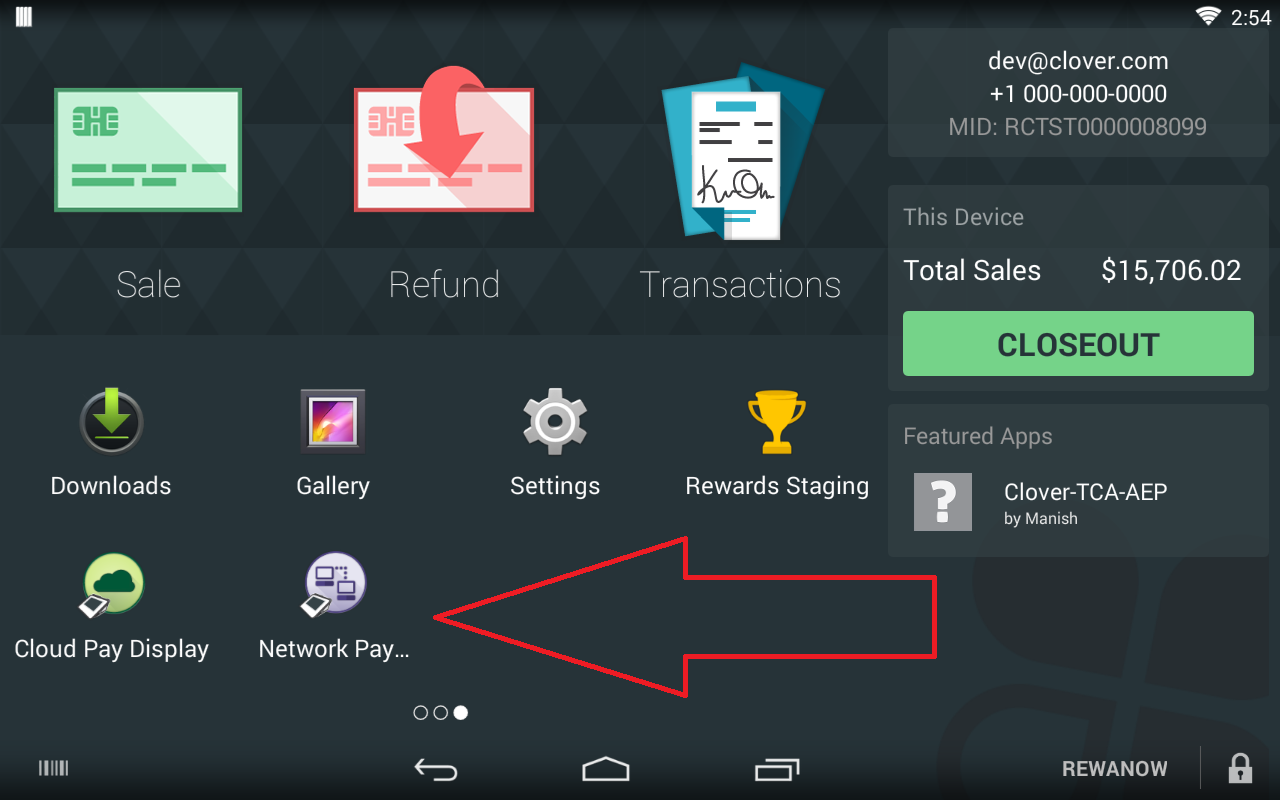
If Network Pay Display app is not running, go to Clover home screen, find Network Pay Display app and tap on it to launch:
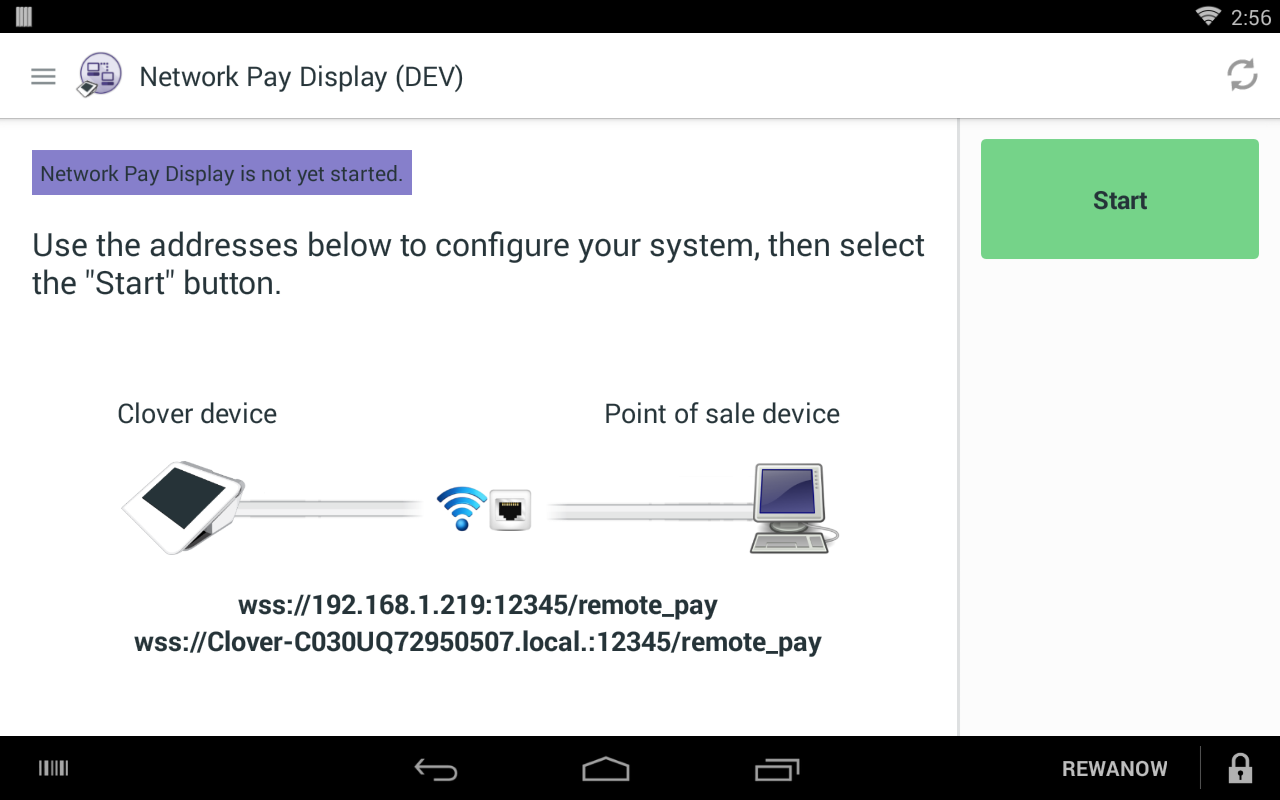
When launching Network Pay Display app, the app will stay at its Start screen. Just tap on the green Start button to completely start it and get to it Welcome screen:
Notes: If Clover device appears hanging; not responsive, just unplug its power cord, wait at least 15 seconds for it to completely turn off, then re-plug its power cord and turn it back on. It may take a minute or two for Clover device to completely turn on. When it’s completely on, either it will automatically launch Network Pay Display and get to its Welcome screen, or it may stay at Clover home screen. If it’s at Clover home screen, find Network Pay Display app and launch it.
A sale ticket for a customer may have one or many technicians (called multi-technicians sale tickets)
Rewanow automatically splits tip among technicians on multi-technicians sale ticket, you can use that or tell Rewanow (in settings) to let you manually re-split tip the way you or customers want
How Rewanow splits tip
Typically, Rewanow splits tip basing on the amount of money each technician made in the ticket.
Example: a sale ticket of $100 with 3 technicians:
If the customer left $20 tip, then Rewanow automatically gives
You can tell Rewanow (in settings) to split tip basing on the number of services each technician serviced the customer.
Example: a sale ticket of $100 with 3 technicians:
If the customer left $20 tip, then Rewanow automatically gives
Either splitting by amount of money or number of services, you can also tell Rewanow (in settings) to split the tip to the whole dollar.
Example: a sale ticket of $100 with 2 technicians
If you chose to split tip by amount money and the customer left $20 tip, then Rewanow automatically gives